
Settings and themes
App-wide options live in the Settings dialog and in two switches on the rail. Options for one project, such as the port and CORS, are under Project instead; see Auth, CORS and project settings.
Open Settings
Select Settings at the bottom of the rail. In the phone layout, open the ⋮ menu at the top right and choose Settings.
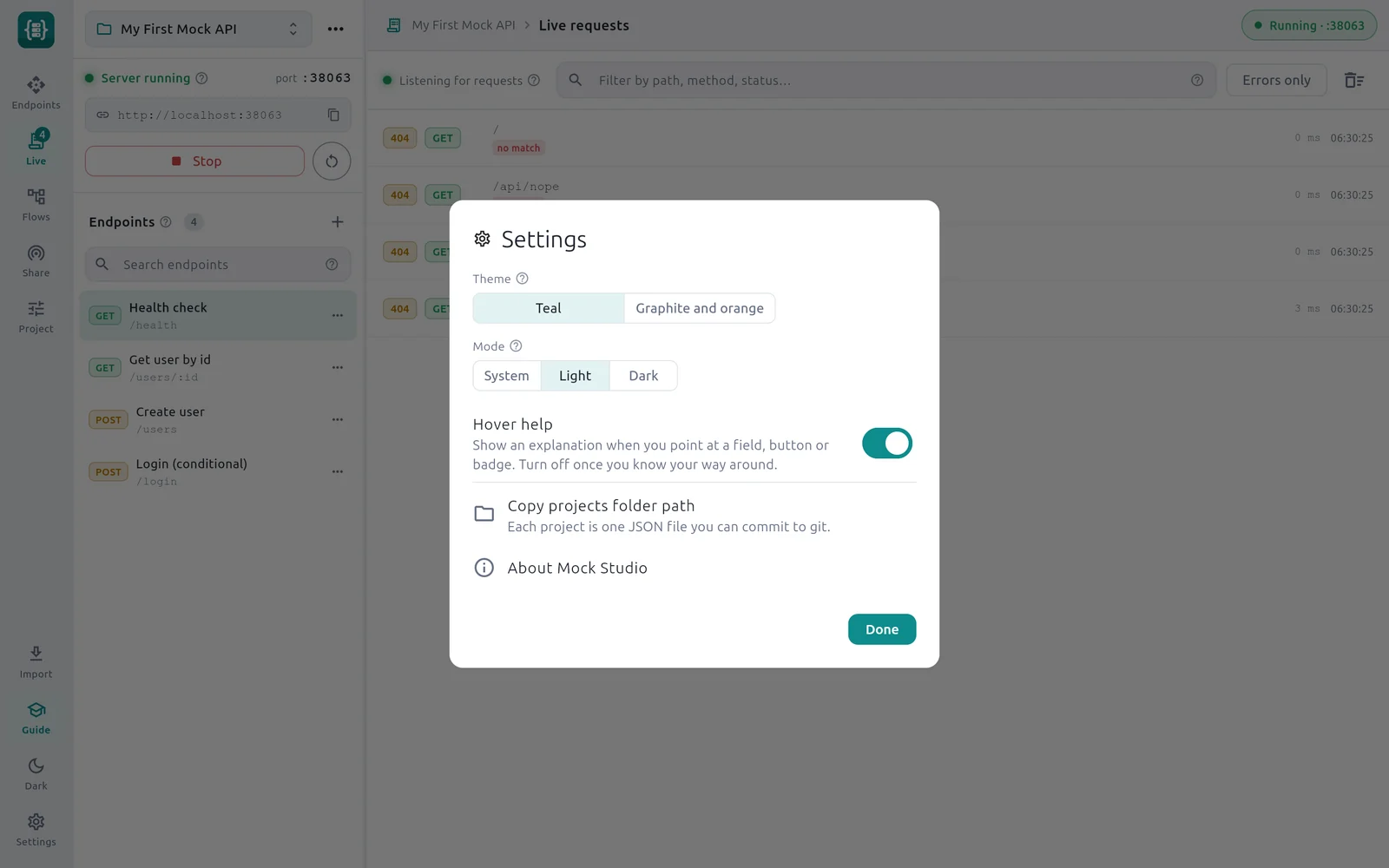
- 1Theme — Teal, or Graphite and orange.
- 2Mode — System, Light or Dark, for the Teal theme.
- 3Hover help — Shows or hides the explanation cards.
- 4Copy projects folder path — Copies the folder where project files are saved.
- 5About Mock Studio — Shows the version.
- 6Done — Closes the dialog. Changes apply as you make them.
| Option | Choices | Default |
|---|---|---|
| Theme | Teal, Graphite and orange | Teal |
| Mode | System, Light, Dark | System |
| Hover help | On, off | On |
| Copy projects folder path | Copies the path to the clipboard | |
| About Mock Studio | Shows the app name and version |
Settings are remembered between sessions and apply to every project.
Themes
Mock Studio has two themes, shared with ApiWorkbench.
- Teal has a light and a dark version.
- Graphite and orange is a dark theme. When it is selected, Mode is replaced by the note
Graphite and orange is dark only.
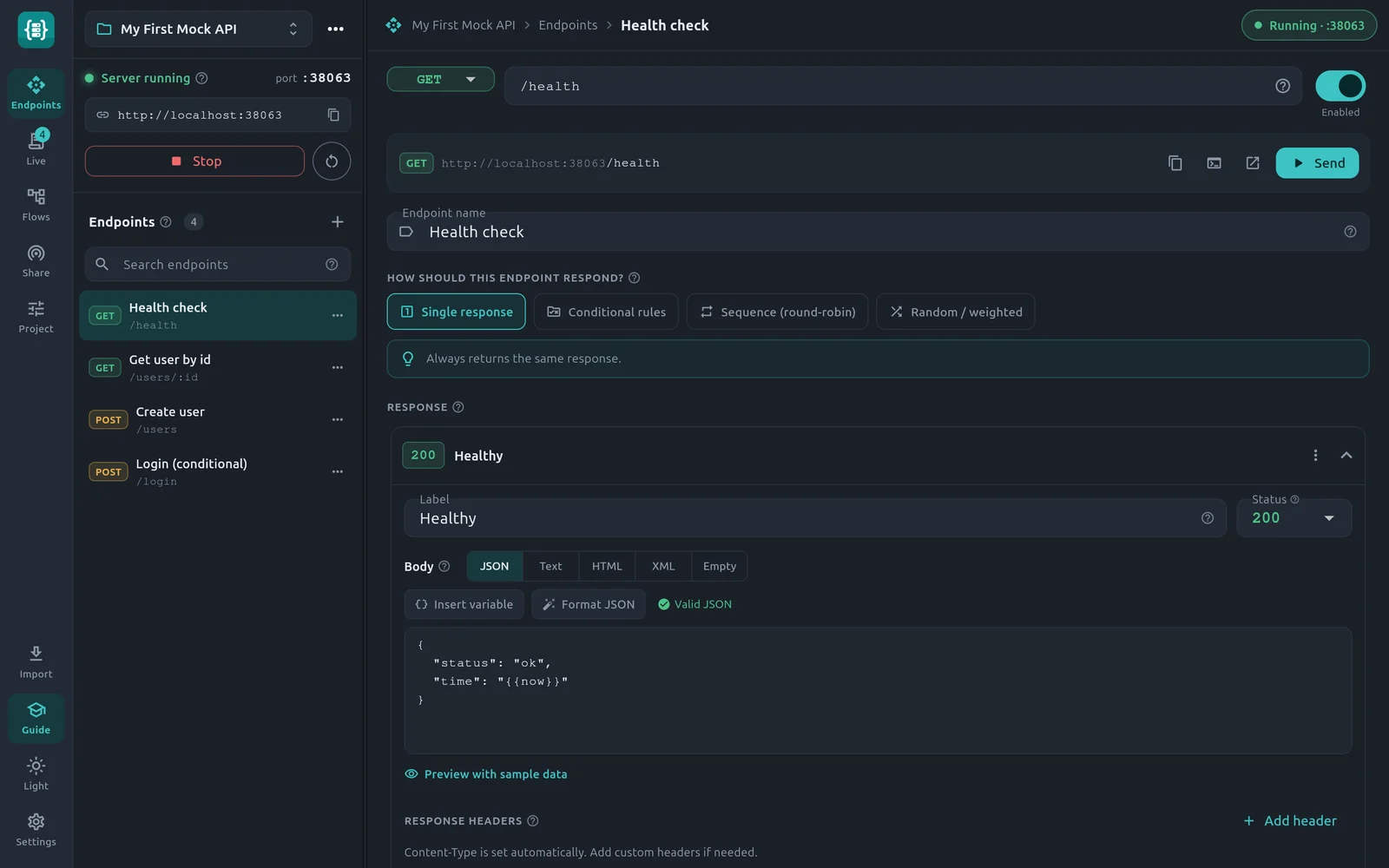
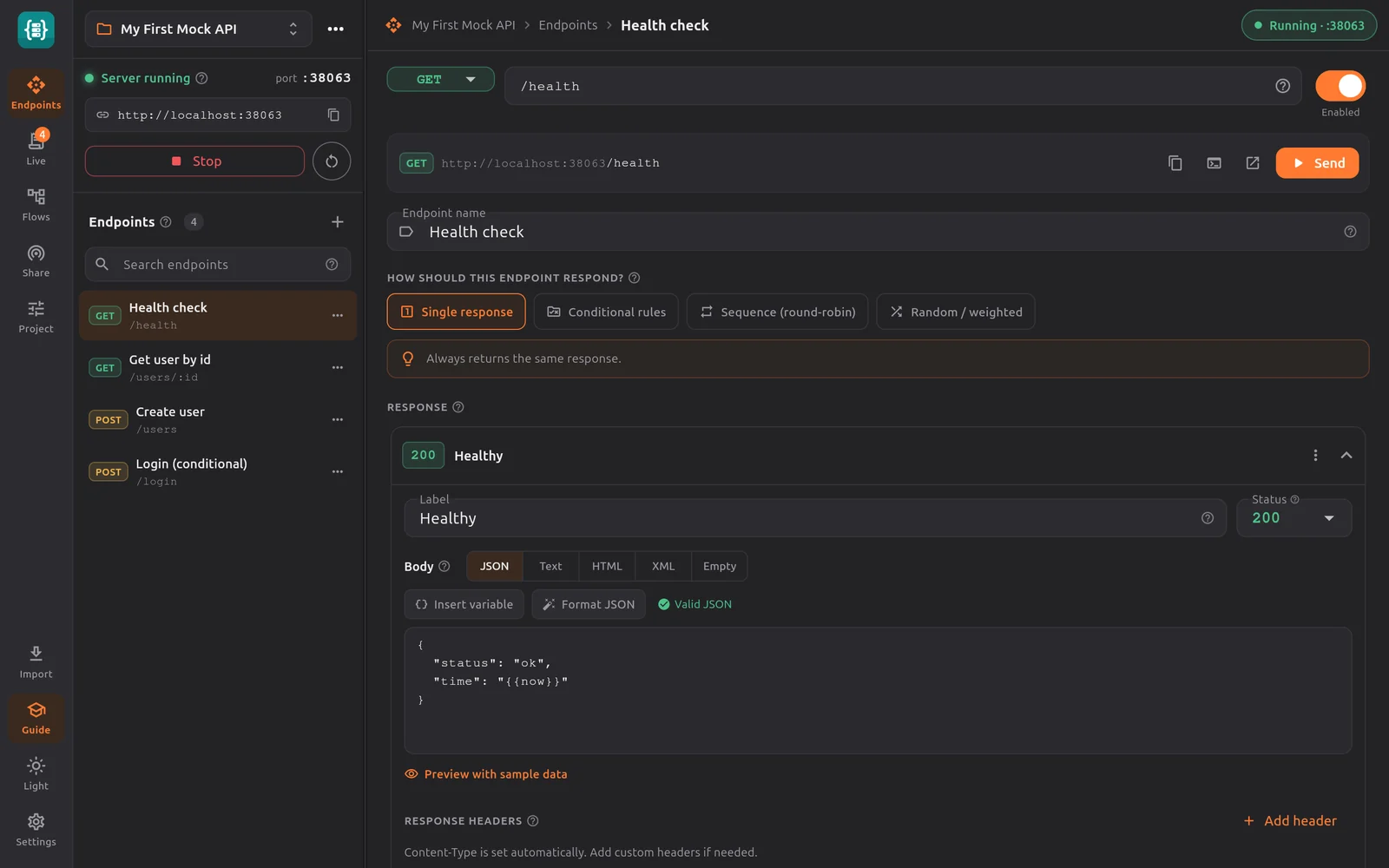
Light or dark
With the Teal theme, Mode decides which version is used:
| Mode | Result |
|---|---|
| System | Follows your desktop's light or dark setting. |
| Light | Always light. |
| Dark | Always dark. |
For a quick switch, use the Dark or Light button near the bottom of the rail. It flips the Teal theme between its two versions without opening the dialog.
Method colours are the same in every theme and follow the usual convention: GET green, POST amber, PUT blue.
Hover help
With Hover help on, every field, button and badge has a question-mark icon. Point at it, or tap it on a touch screen, to open a card with a title, a short explanation and an example.
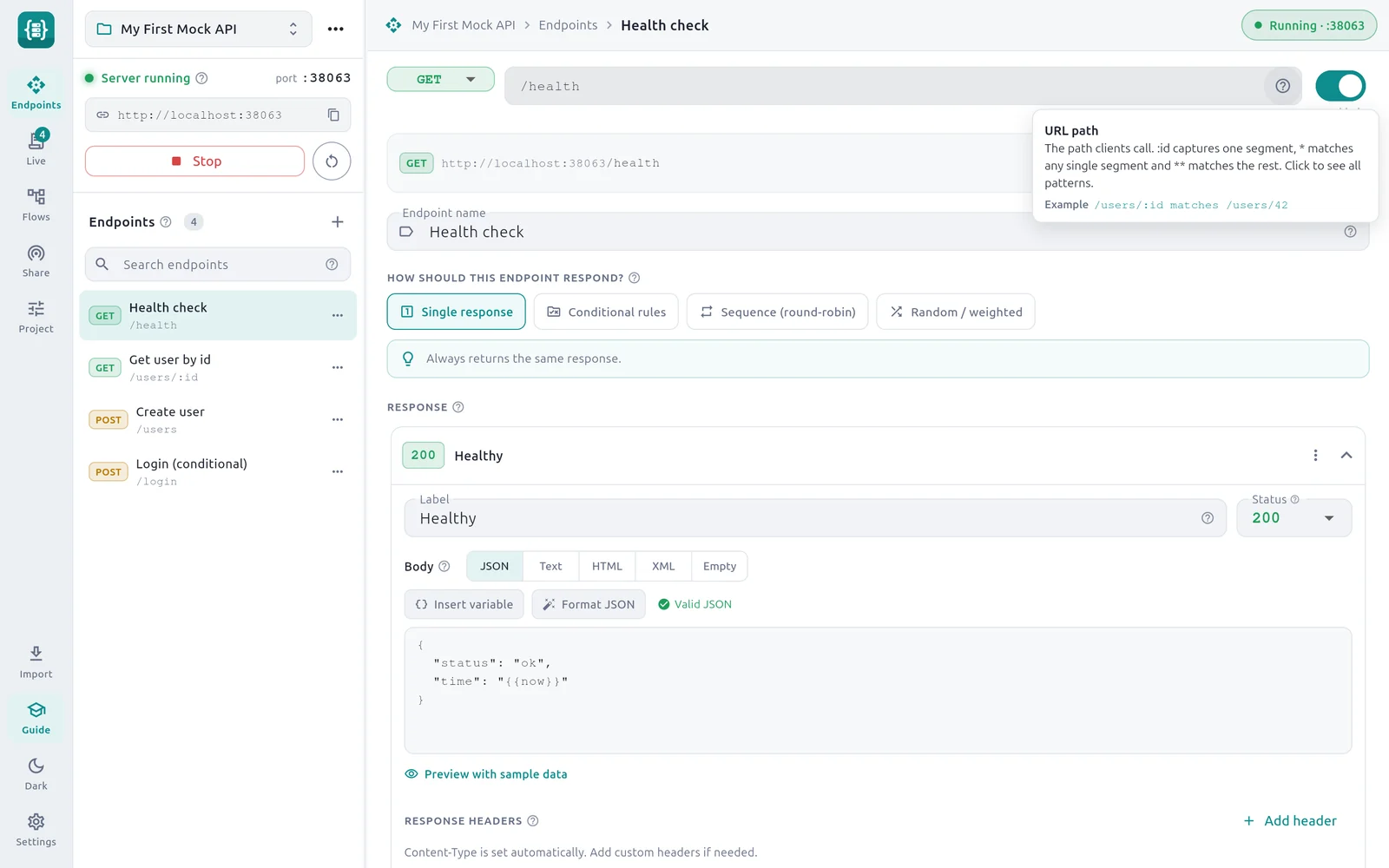
Turn it off once you know your way around. The question-mark icons disappear and the window is a little less busy. You can turn it back on at any time.
Guide mode
The Guide button on the rail turns extra hints on or off. It is on when you first open the app, and the button is highlighted while it is on.
With Guide on you see, for example:
- a hint line under the strategy chooser that explains the selected strategy;
- a short explanation at the top of Proxy passthrough in the Project section;
- a paragraph in the flow editor that explains step modes, extraction and tokens.
Guide and Hover help are separate. Guide adds sentences to the page; hover help adds cards that appear when you point at something. Beginners may want both; experienced users often turn both off.
The projects folder
Copy projects folder path puts the folder's path on the clipboard and shows it in a message. Paste it into a file manager or a terminal to reach your project files. Each project is one JSON file you can commit to Git. See Projects, files and Git.
Window layout
These are not in the dialog, but they change how the window looks:
- Resize the side panel. Drag the line between the side panel and the main area.
- Hide the side panel. Click the active rail item again. Click it once more to bring the panel back.
- Phone layout. On a narrow window, the rail moves to the bottom and the endpoints list and editor become separate pages.
Keyboard shortcuts
Mock Studio 1.2.0 has no app-specific keyboard shortcuts. The usual text-editing keys, such as Ctrl + C, Ctrl + V and Ctrl + A, work in text fields.