
Beginner guide: play your music
By the end of this page RetroBeat will have found the music on your phone, you will know your way around the library, and you will have played, paused and skipped songs from the full player.
Before you start
- RetroBeat installed on an Android phone. See Install.
- Some music files on the phone, such as MP3 or FLAC files in your
MusicorDownloadfolder.
On Linux, start with Use RetroBeat on Linux instead: you add folders rather than allowing access.
Allow access to your music
Open RetroBeat. Android asks whether RetroBeat may access music and audio on your device.
Tap Allow. RetroBeat scans your music and lists it on the Tracks tab.
If you tapped Don't allow, the library says We need permission to read the music on your device. Tap Grant access to be asked again. If Android no longer asks, the button reads Open Settings: turn on the music permission there and come back.
Find your way around
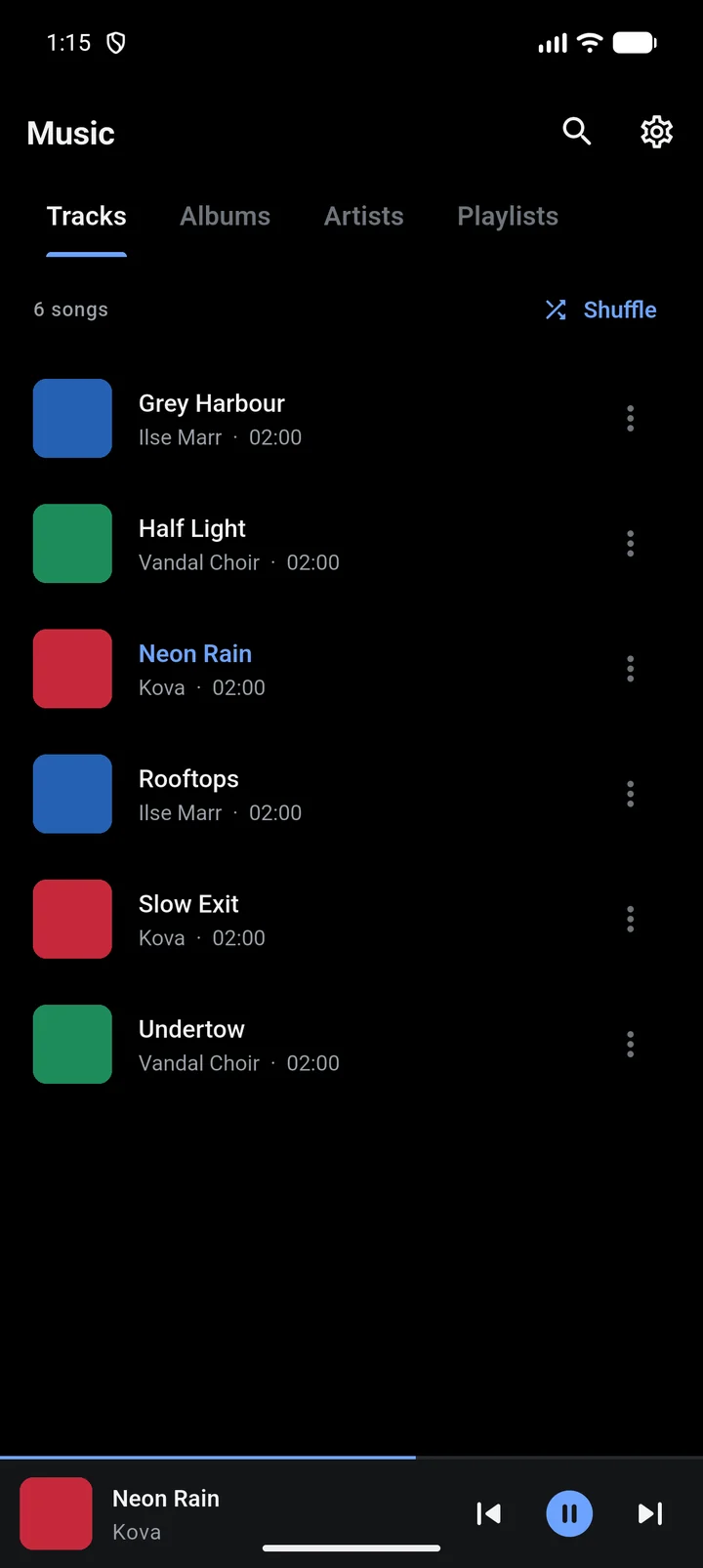
- 1Tabs — Tracks, Albums, Artists and Playlists. Swipe sideways to switch.
- 2Search — Finds songs, artists and albums.
- 3Settings — Rescan, folders, equalizer, tabs and themes.
- 4Shuffle — Plays every song in random order.
- 5Song — Tap to play. The playing song is shown in the accent colour.
- 6More — Like the song or add it to a playlist or group.
- 7Mini player — The current song. Tap to open the full player.
Play a song
On the Tracks tab, tap a song. It starts playing, and the mini player appears at the bottom.
Use the buttons on the mini player to pause, go back or skip. You can also swipe the mini player: left for the next song, right for the previous one.
Tap the mini player to open the full player.
The song keeps playing when you leave the app or lock the phone. Control it from the notification, the lock screen or your headset buttons.
Use the full player
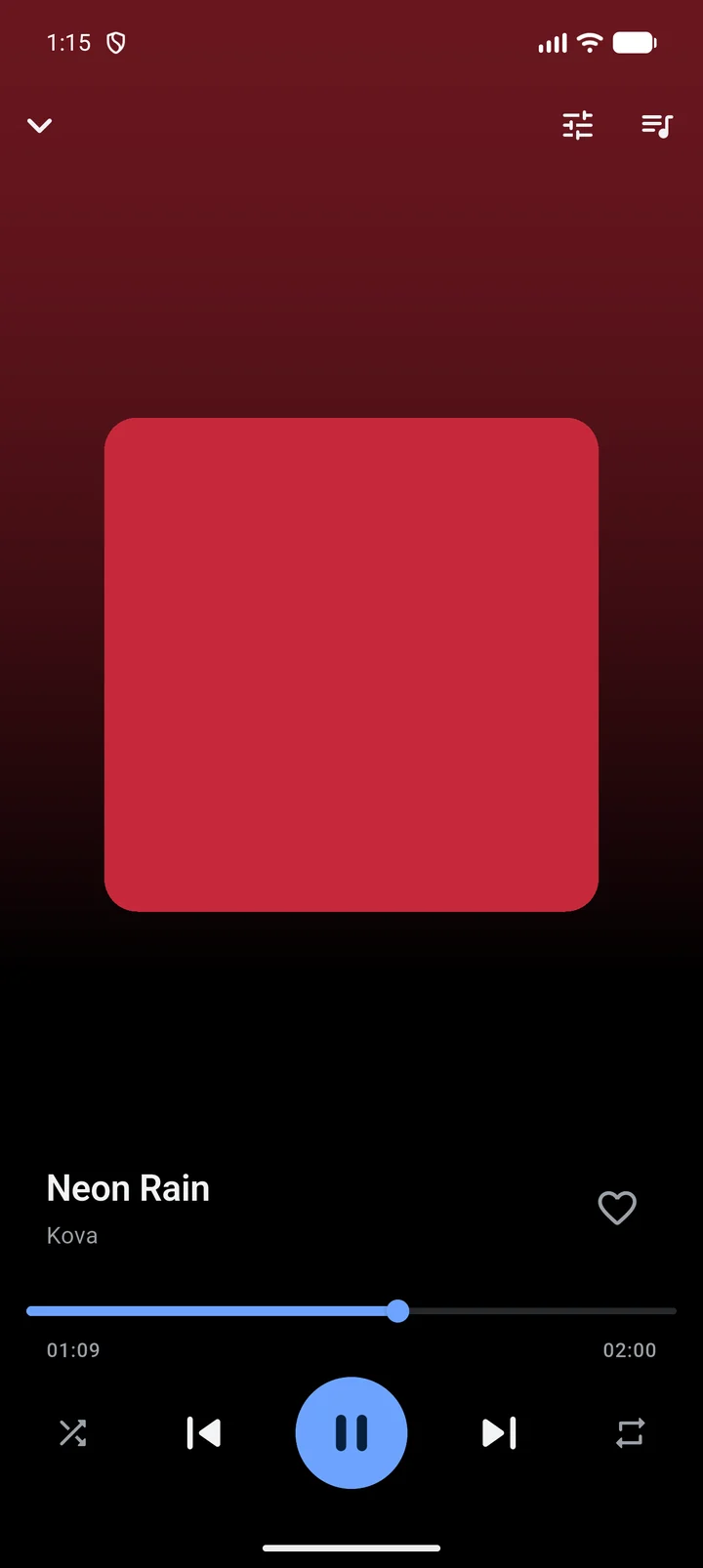
- 1Equalizer — Opens the equalizer.
- 2Queue — The songs coming up. Drag to reorder.
- 3Album art — Swipe left for the next song, right for the previous one.
- 4Like — Adds the song to Liked and the Favorites group.
- 5Seek bar — Drag to jump to another point in the song.
- 6Shuffle — Plays the rest of the queue in random order.
- 7Play and pause — Starts or pauses the song.
- 8Repeat — Repeat off, repeat all, or repeat one song.
Tap the down arrow at the top left, or press Back, to return to the library.
Like a song
Tap the heart in the full player, or tap ⋮ next to a song and choose Add to Liked. Liked songs collect in the Favorites group and on the Liked tab, which you can turn on in Settings > Tabs.
What you learned
- How to give RetroBeat access to your music.
- How the library tabs, mini player and full player fit together.
- How to like a song.