
Use the shell and quick actions
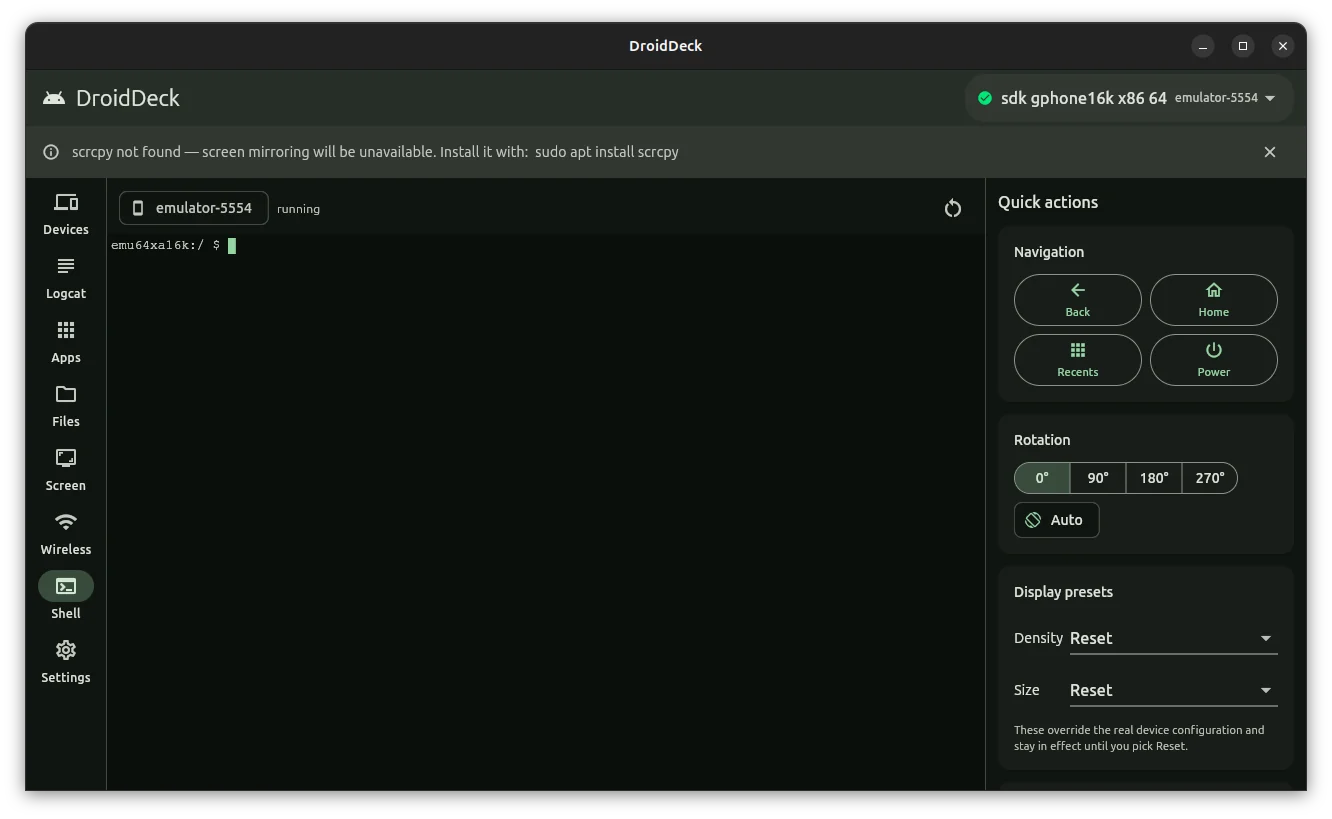
Type commands that run on the device itself, and use buttons for the things you would otherwise type again and again: pressing Back, rotating the screen, changing the display size.
What the shell is
Android is built on Linux, and every device has a command line called a shell. adb shell opens it from your computer. The Shell tab is that command line in a real terminal, so full-screen tools such as top and vi work, as do the arrow keys and Tab.
DANGER
Commands you type here run on the device immediately, with no confirmation and no undo. A command such as rm deletes files for good. Do not paste commands you do not understand.
Run a command
Open the Shell tab. A prompt from the device appears in the terminal.
Type a command and press Enter. To list the device's shared storage, for example:
bashls /sdcardTo stop a command that keeps running, press Ctrl + C with no text selected.
The bar above the terminal shows the device's serial and whether the session is running. The terminal keeps the last 10,000 lines for scrolling back.
Copy and paste
| To do this | Use |
|---|---|
| Copy the selected text | Ctrl + C, Ctrl + Shift + C or Ctrl + Insert |
| Paste | Ctrl + V, Ctrl + Shift + V or Shift + Insert |
| Select all | Ctrl + Shift + A |
| Open a Copy and Paste menu | Right-click in the terminal |
Ctrl + C does two jobs. With text selected it copies the text and clears the selection. With nothing selected it interrupts the running command, as in any terminal. Ctrl + A goes to the shell and moves the cursor to the start of the line.
Restart the session
Select Restart session, the circular arrow above the terminal, to end the current shell and start a new one.
If the shell ends by itself, for example after you type exit or the device disconnects, a red bar reads exited with a code. Select Restart in that bar.
Selecting another device in the device picker opens a new session for that device. The previous session and its scrollback are closed.
Quick actions
The panel on the right sends single commands to the selected device. The buttons are greyed out when no device is connected.
Navigation
Back, Home, Recents and Power press those buttons on the device. Power turns the screen off or on, as a short press of the real button does.
Rotation
Select 0°, 90°, 180° or 270° to turn the screen to that angle. Choosing an angle turns the device's auto-rotate setting off so the angle holds.
Select Auto to turn auto-rotate back on.
Display presets
Density and Size make the device behave as if it had a different screen, which is useful for checking a layout on screen sizes you do not own.
- Density: 320 dpi, 420 dpi, 480 dpi, 560 dpi or Reset.
- Size: 720×1280, 1080×1920, 1440×2560 or Reset.
WARNING
These settings change the device itself and survive closing DroidDeck. As the panel says: These override the real device configuration and stay in effect until you pick Reset. A wrong size or density can make the device awkward to use until you choose Reset for both.
The two menus show the last value you chose in this panel, not what is set on the device. To see what is really set, look at Display on the Devices tab, which shows the real value and any override.
Dumpsys shortcuts
dumpsys is an Android command that prints the state of a system service. Three buttons run it for you and show the output in a window you can scroll and copy from:
| Button | What it shows |
|---|---|
| battery | Charge level, power source, health and temperature. |
| activity top | The screen that is in front right now, and details about it. |
| meminfo | How much memory each process is using. |
Select Close to dismiss the window.
Next steps
- Read the device log
- Browse and transfer files
- Reference: every shortcut and the command behind each button.