
Manage apps
List the apps on a device, install a build, and launch, stop, reset, remove or copy out any app.
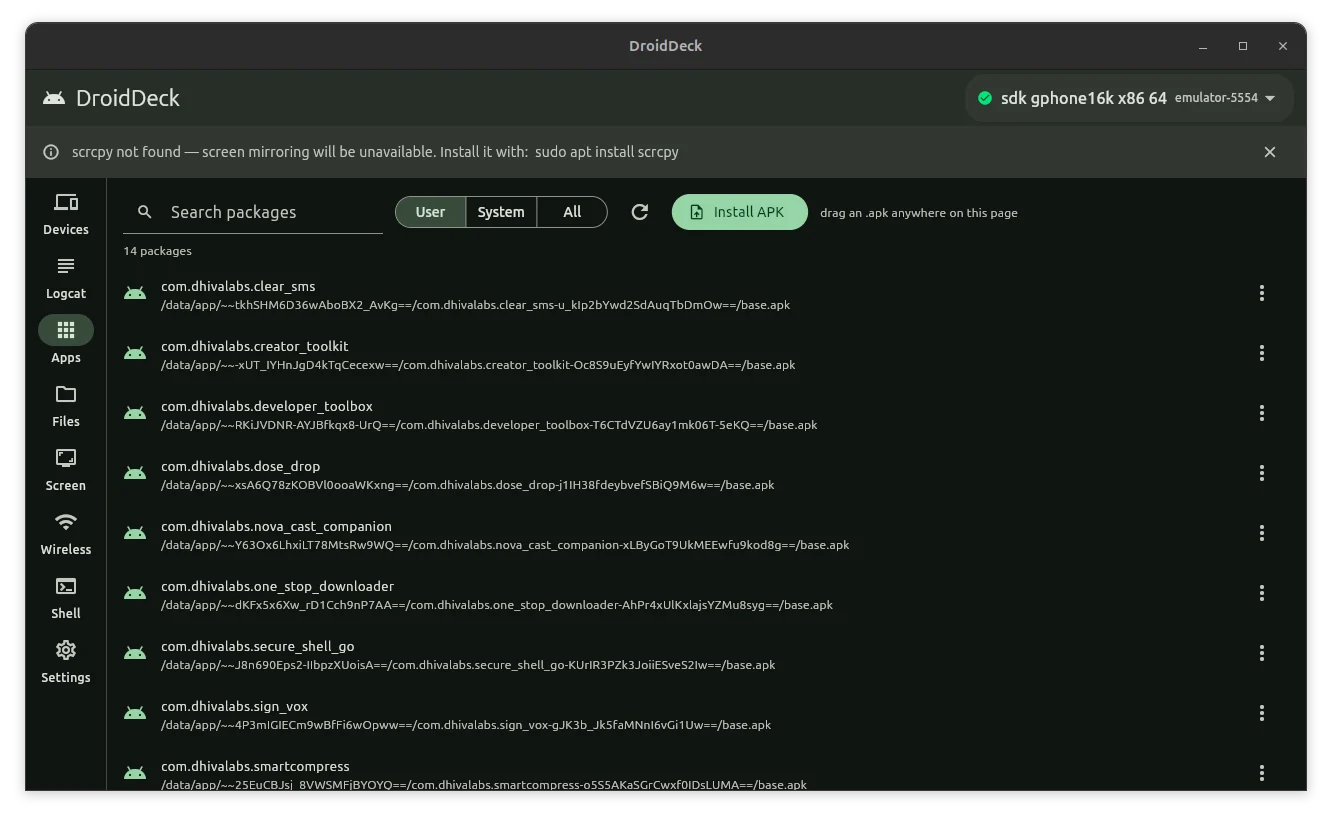
Packages and APKs
Android identifies every app by its package name, a dotted name such as com.example.myapp. The name you see under an icon on the phone is only a label; tools use the package name.
An APK is the file an Android app is installed from. Some apps are installed from several APK files at once: a base APK plus split APKs for particular screen sizes, processors or languages.
Find an app
The list shows each package name with the path of its APK on the device underneath. A line above the list counts the packages shown.
- User shows apps that were installed on the device. This is the default.
- System shows apps that came with Android or the phone maker.
- All shows both.
- Type in Search packages to keep only names containing that text.
- Select Refresh, the round arrow, after you change apps on the phone itself.
Install an APK
Select Install APK and choose an
.apkfile on your computer.Or drag an
.apkfile from your file manager and drop it anywhere on the Apps tab.A window titled Installing, followed by the file name, shows the output of the install as it runs.
When it ends with a green tick and Installed, select Close. The list refreshes and includes the new app.
If the window ends with Failed, the lines above it carry the reason from the device, for example a version or signature conflict with an app that is already installed.
Good to know:
- Installing an app that is already on the device replaces it and keeps its data, as an update would.
- Test-only APKs, the kind a development build often produces, are accepted.
- DroidDeck installs one APK at a time. If you drop several files, it installs the first
.apkamong them.
Launch or stop an app
Select the three dots at the right end of an app's row to open its Actions menu.
- Launch opens the app on the device.
- Force-stop ends the app's processes at once. The app is not removed and keeps its data, but anything it had not saved is lost.
Both run immediately, without asking. A short message at the bottom of the window confirms the result.
Clear an app's data
Clear data… resets an app to the state it was in when first installed.
DANGER
Clearing data permanently deletes everything the app has stored on the device: its accounts and sign-ins, settings, databases and saved files. DroidDeck asks you to confirm, with the message The app will lose its runtime state. The loss is wider than that wording suggests, and it cannot be undone.
Open the app's Actions menu and select Clear data….
Check the package name in the question, then select Clear data of to go ahead, or Cancel.
Uninstall an app
Open the app's Actions menu and select Uninstall….
DroidDeck asks Uninstall, followed by the package name, and warns This cannot be undone. Select Uninstall to go ahead, or Cancel.
DANGER
Uninstalling removes the app and its data from the device. There is no undo. If you may want the app back, extract its APK first, and remember that the extracted files do not include the app's data.
System apps cannot be uninstalled from DroidDeck. For them the menu item reads Uninstall (system app) and is greyed out.
Extract an app's APK files
Extract APK copies the files an app was installed from to your computer.
Open the app's Actions menu and select Extract APK.
Wait for the message APK(s) saved to, followed by a folder path.
The files go to a folder named after the package, inside droiddeck-apks in your Downloads folder. If the app was installed from split APKs, every part is copied, not only the base APK.
Only extract apps you have the right to copy. An extracted APK contains the app, not your data in it.
When no device is connected
The tab shows Connect a device to manage apps and Install APK is greyed out. Connect a device and select it in the device picker.
Next steps
- Read the device log: filter the log to the app you installed.
- Browse and transfer files
- Reference: the
adbcommands behind each action.