
Use the screen tools
Take a picture of a device's screen, record a short video of it, or show the screen live in a window on your computer.
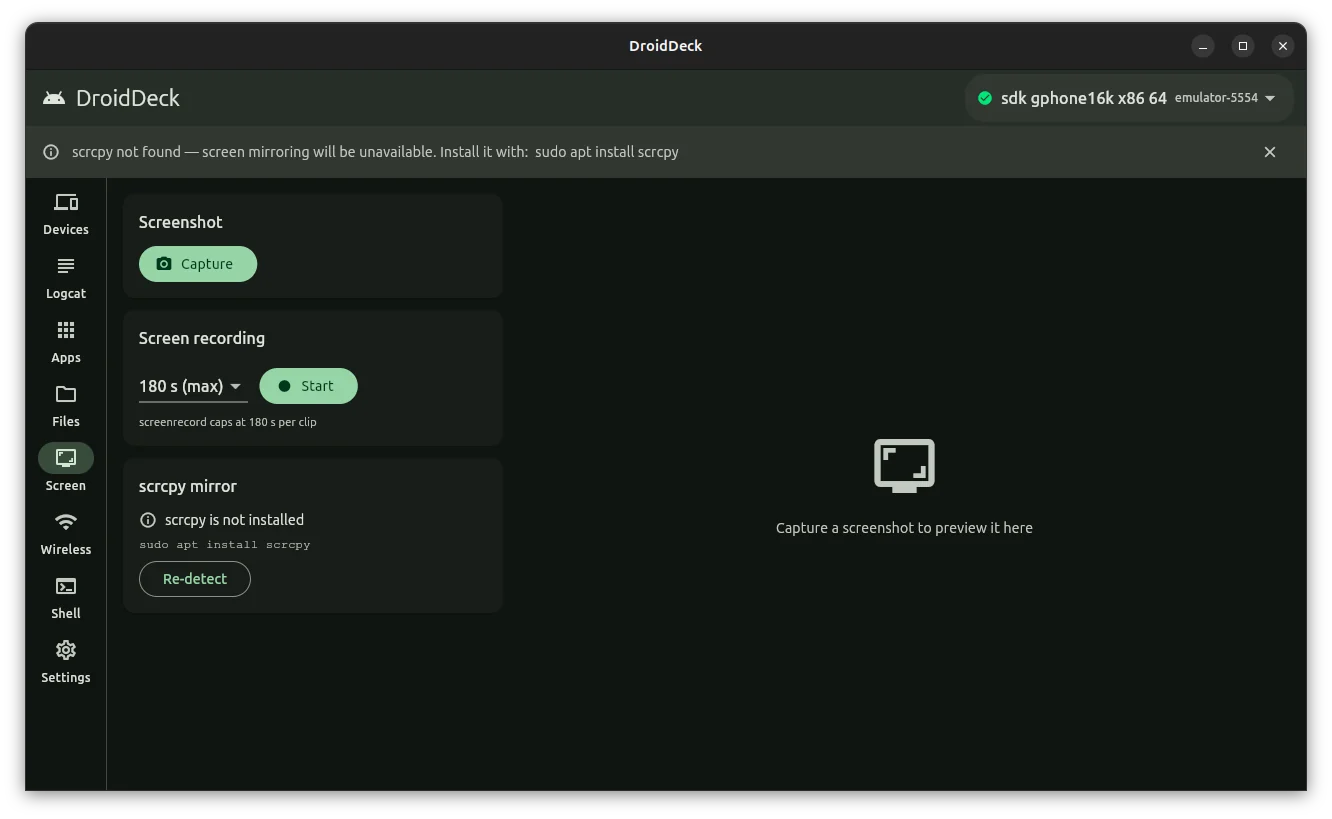
The tab has three cards on the left, Screenshot, Screen recording and scrcpy mirror, and a preview area on the right. All three work on the device in the device picker.
Capture a screenshot
Get the device's screen to the state you want to capture.
On the Screen tab, select Capture.
The picture appears in the preview area. The line under it shows when it was captured and its size in pixels.
Select Save…, choose where to save it, and confirm.
DroidDeck suggests a file name made of droiddeck, the device's serial and the date and time, ending in .png.
If you cancel the save window, a message reading Save cancelled appears with a Save to ~/Pictures button. Select it to save the picture straight into a droiddeck folder inside your Pictures folder, with the suggested name.
Each new capture replaces the one in the preview, so save a picture you want before you select Capture again.
Good to know
Some apps, such as banking apps and video players, block screenshots. Their part of the picture comes out black. That is the app's choice, and DroidDeck cannot override it.
Record the screen
In the Screen recording card, choose the longest the clip may run: 30 s, 60 s or 180 s (max).
Select Start.
A red dot and a running timer show that recording is on.
Use the device.
Select Stop, or let the time limit end the clip.
The card shows Saving… while the video is copied to your computer, then a green tick and the path of the saved file.
Recordings are saved as .mp4 files in your Videos folder, named droiddeck-, the device's serial, and the date and time. Select Open folder to see the file in your file manager, or Record again to make another clip.
Things to know about recording:
- Three minutes is the limit. The card says screenrecord caps at 180 s per clip. This limit comes from Android's own recorder.
- Nothing moving means nothing recorded. Android only records a frame when the screen changes. A recording of a still screen is a few kilobytes and barely plays. Tap, scroll or type while you record.
- No sound. The recording is video only.
- While it records, the clip is kept in a temporary hidden file in the device's shared storage. DroidDeck copies it to your computer when the recording ends, then deletes it from the device.
Mirror the screen with scrcpy
scrcpy is a separate, free program that shows a device's screen in a window on your computer and lets you control it with your mouse and keyboard. DroidDeck starts it for you with the options you pick.
If the card reads scrcpy is not installed, install scrcpy, then select Re-detect. You do not need to restart DroidDeck. The Snap Store package of DroidDeck cannot use scrcpy; see Install.
In the scrcpy mirror card, choose a Preset.
Tick any options you want.
Select Launch.
A scrcpy window opens showing the device's screen.
| Preset | What it does |
|---|---|
| Default | Starts scrcpy with its own default settings. |
| High quality | Uses a higher video bit rate, 16 Mbit/s, for a sharper picture. |
| Low latency | Uses a lower bit rate, 4 Mbit/s, and limits the picture to 1024 pixels on its longer side, to cut delay. |
| Option | What it does |
|---|---|
| --stay-awake | Keeps the device from going to sleep while it is plugged in. |
| --turn-screen-off | Turns the device's own screen off while you mirror it. |
| --show-touches | Shows a dot on the screen wherever it is touched. |
| Record to file | Also saves the mirrored session as an .mkv video in your Videos folder, named droiddeck-scrcpy- and the date and time. |
The first three options carry the names of the scrcpy options they turn on.
Each window you launch is listed at the bottom of the card with the device's serial and a chip reading running. Select the stop icon next to it to close that window. When a window closes, its chip changes to exit and a number; if scrcpy ended with an error, the last lines of its output appear in red. Select Clear finished to remove closed sessions from the list.
You can mirror more than one device: select another device in the device picker and select Launch again.
Next steps
- Browse and transfer files
- Use the shell and quick actions: rotate the screen or change its density before a capture.
- Reference: where screenshots and recordings are saved.