
Rescue a failing drive
A failing drive should be read once, carefully, into an image file. DiskRescue then finds your files in that image and leaves the drive alone.
Why copy first
An image is a file that holds a copy of every readable part of the drive. Copying first means:
- The drive is read as little as possible before it degrades further.
- You can stop and continue the copy at any time.
- You can search the image again later, with other settings, without touching the drive.
Reading the drive directly is fine for a healthy drive, for example after an accidental delete. It is not a good idea for a failing one.
Start the rescue
On Rescue from a drive, select Rescue on the drive.
Complete What to recover and select Next.
On Where to save, choose the folder for recovered files and keep Copy the drive to an image first (recommended for failing drives) turned on.
The Image file needs up to the size of the whole drive in free space. DiskRescue shows the free space and warns when there may not be enough room.
On Review and start, resolve the Safety checks and select Start rescue.
Safety checks you may see
| Message | What to do |
|---|---|
| The drive is in use by the system (mounted) | Unmount it in your file manager and select Check again. Or tick I understand the risk to read it while mounted; results may be incomplete if something writes to it |
| That place is on the drive being rescued | Choose a folder on another disk |
| Not enough free space for the copy | Choose a place with more room, for example an external drive |
| DiskRescue needs administrator rights to read this drive | Select Copy with administrator rights (Linux) or Restart as administrator (Windows) |
| The drive reports a size of 0 bytes | Software cannot read it. See When to stop |
| That copy belongs to a different drive | Use a new name for this drive's copy, so the two never get mixed up |
DiskRescue never overwrites an existing image file that it cannot continue. Use a new name to start a new copy.
Read the progress page
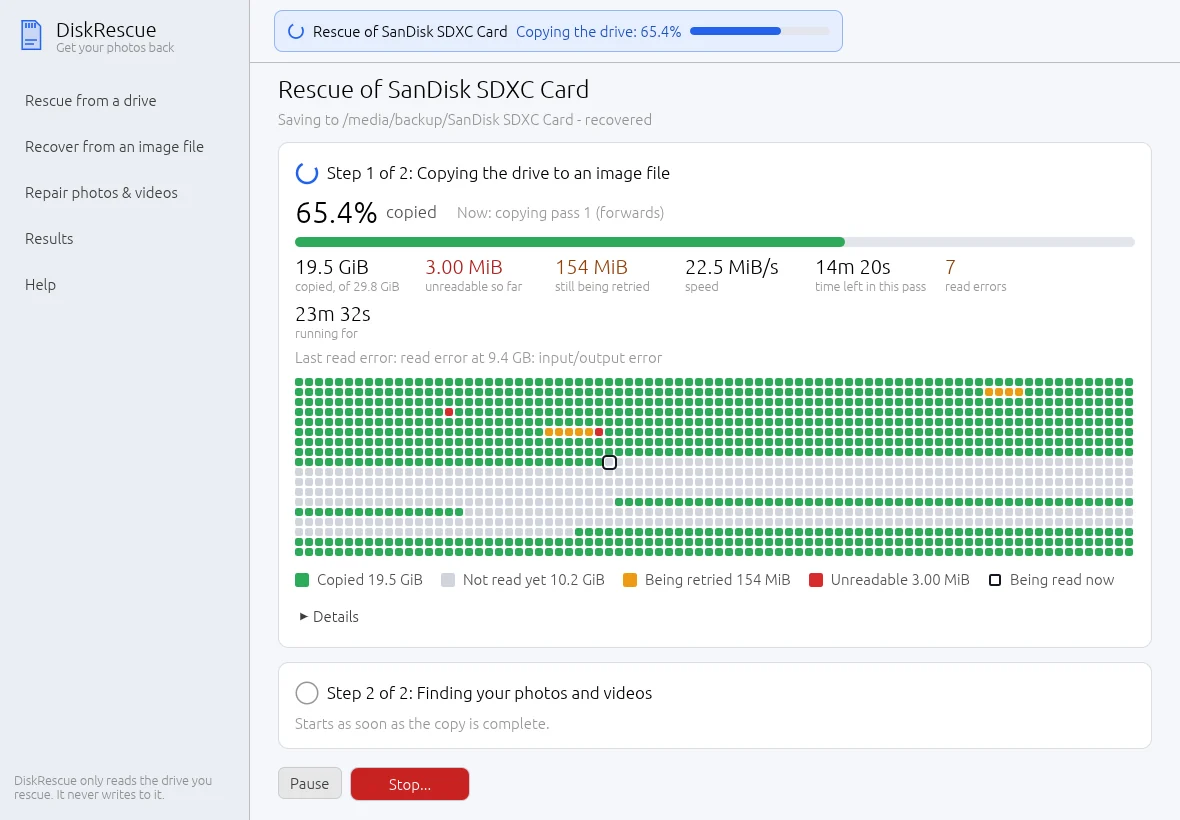
| Colour in the map | Meaning |
|---|---|
| Copied | Read and saved in the image |
| Not read yet | Still to do |
| Being retried | Failed once; DiskRescue comes back to it |
| Unreadable | Could not be read after retries |
| Being read now | Where the drive is being read at this moment |
The numbers above the map show how much is copied, how much is unreadable so far, the speed, the time left in this pass and the count of read errors. DiskRescue makes several passes: it skips over bad areas first so the healthy parts are safe, then returns to the damaged ones.
If the drive disconnects, DiskRescue waits for it to come back. With a pen drive that keeps disconnecting, try another port, cable or card reader.
Pause, stop and continue
- Pause stops reading until you select Resume.
- Stop..., then Stop and save, saves the progress and ends the rescue. Select Keep going to carry on instead.
To continue a stopped copy, start the rescue of the same drive again with the same image file name. DiskRescue shows Continuing an earlier copy and reads only what is still missing.
WARNING
If a hard disk gets louder, slower or starts clicking during the copy, stop. Each hour of running a mechanically failing disk can cost data. A lab may be the better next step.
Advanced settings
Advanced settings in the rescue steps hold options for unusual cases:
| Setting | What it does |
|---|---|
| Reading strategy | The read profile. Automatic picks one from the drive type |
| Time limit for one read | How long to wait for one read before moving on |
| Retry passes | How many times damaged areas are tried again |
| Searching the raw data | Automatic (recommended), Free space only, Everything or Do not search the raw data |
| Reference files for repairs | Healthy files from the same camera or phone, used to repair damaged ones |