
Beginner guide
This guide takes you through a first rescue with the desktop app: choose the drive, answer three questions, and look at the files that came back.
What you need
- DiskRescue installed on a healthy computer. See Install.
- The card or drive with the lost files, connected but not used for anything else.
- A different disk with enough free space for the recovered files, and for a copy of the drive if you make one.
Read Before you start first if you have not.
Choose the drive
Open DiskRescue.
The Rescue from a drive page lists the cards, USB drives and disks it found. The list updates by itself when you plug a drive in.
Find your drive by its name and size.
Tags under the name tell you about it: Mounted or In use, Removable, Failing, Read-only, Needs administrator rights. The disk your computer runs from is marked as such; do not pick it.
Select Rescue on that drive.
Answer the three questions
What to recover. Under What should DiskRescue look for?, keep Photos, Camera RAW photos and Videos, or change the selection. Under Which files?, keep Deleted files and files that are still there (recommended). Select Next.
Where to save. Under Save recovered files to, select Choose folder... and pick a folder on another disk.
Leave Copy the drive to an image first (recommended for failing drives) on if the drive shows any sign of trouble. Select Next.
Review and start. Check Your choices, then read Safety checks.
If a check shows a problem, follow its What to do text and select Check again. When the page shows Ready to start, select Start rescue.
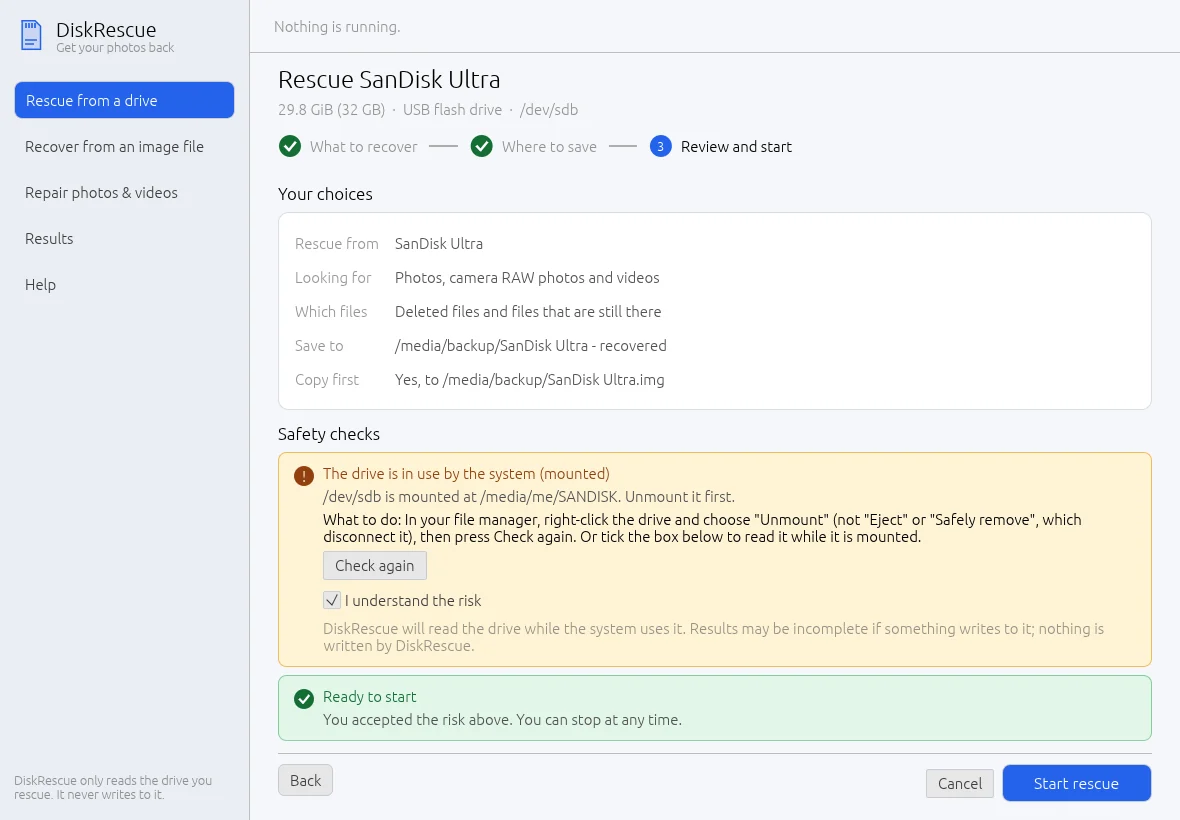
If the drive needs administrator rights, DiskRescue says so. On Linux, select Copy with administrator rights and enter your password. On Windows, select Restart as administrator.
Watch the rescue
The rescue runs in two steps: Copying the drive to an image file, then Finding your photos and videos. The map shows which parts are copied, not read yet, being retried or unreadable.
You can select Pause, or Stop... and then Stop and save. Everything found so far is kept, and nothing is written to the drive.
Look at your files
When the page shows Rescue finished, select See your recovered files.
On the Results page, use the filters Photos, Videos, Damaged, Repaired and Deleted.
Select a thumbnail to see its details, and Open the folder to see the files on disk.
What you learned
- DiskRescue only reads the drive; recovered files go to another disk.
- The three questions are what to recover, where to save, and a final review with safety checks.
- Results are saved in a folder you can reopen later from the Results page.