
Beginner guide
You will put a few files on a disc. First you rehearse with the laser off, so no disc is used up; then you burn for real and check the result.
What you need
- Disc Writer installed, and your user in the
cdromgroup. See Install. - An optical drive that can write, and a blank or rewritable disc.
- A few files to burn.
Good to know
No drive at hand? Open the More menu on the drive card and choose Use an image file as a drive…. The file behaves like a blank rewritable disc, and every step below works on it.
Check the drive
Open Disc Writer and insert the disc.
Look at the DRIVE card at the bottom left. It shows the drive and what the disc is, for example blank.
If it shows No optical drive found or Drive not accessible, open Disc info for the reason.
Collect your files
Open the Data disc page.
Select Add files or Add folder, or drop files and folders onto the window.
They keep their names and folder structure on the disc.
Type a name under Disc label.
Check the gauge on the right. It shows how much of the disc your files fill.
Rehearse
Under Options, turn on Simulate only.
Select Simulate burn.
Disc Writer goes through the burn with the laser off. Nothing is written.
When it shows Done, select Close.
Burn
Turn Simulate only off.
Leave Verify after writing on.
Select Burn.
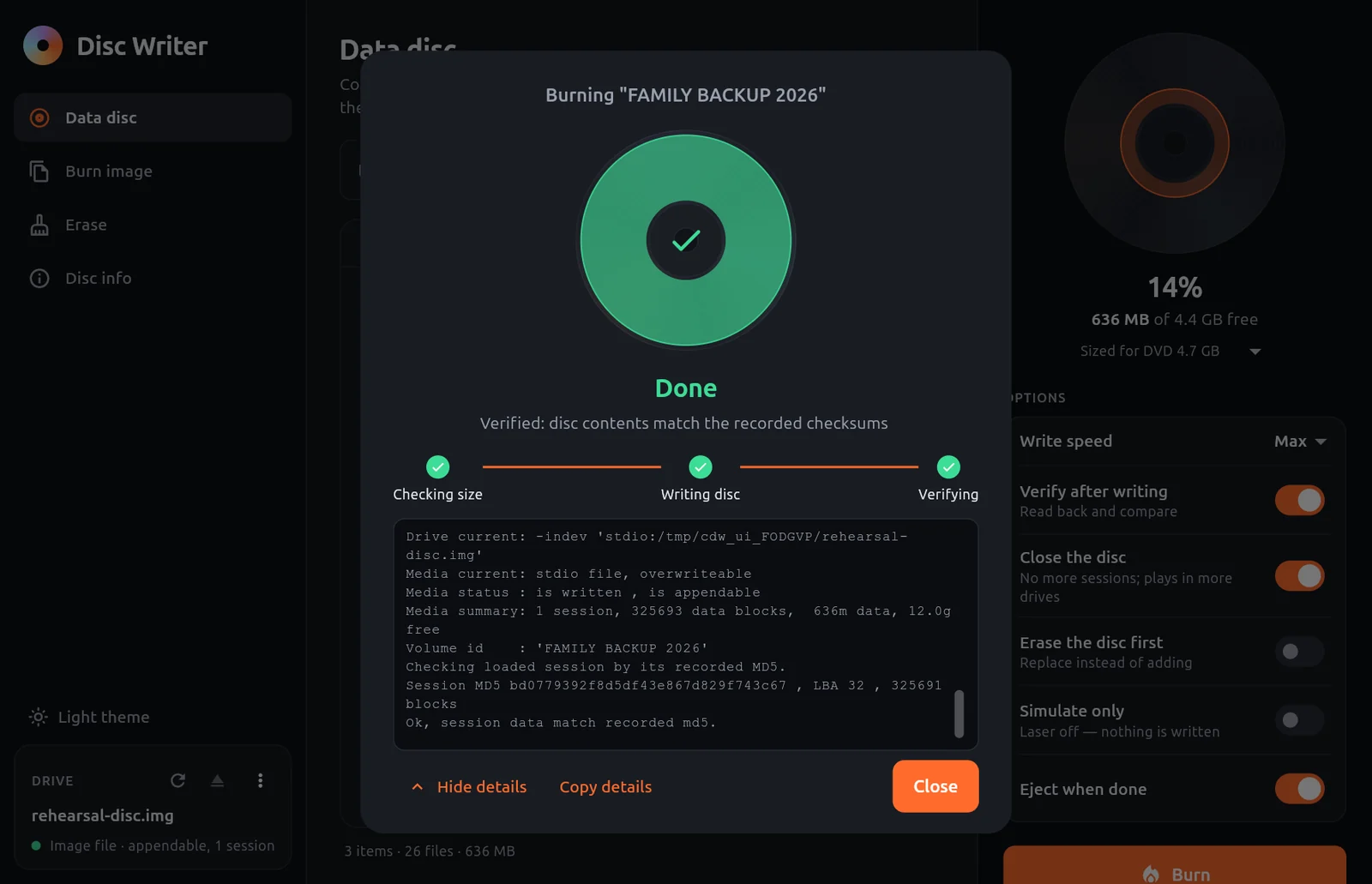
The progress window goes through Checking size, Writing disc and Verifying.
Wait for Done and the line Verified: disc contents match the recorded checksums.
DANGER
Do not stop a burn on a write-once disc (CD-R, DVD±R, BD-R) unless you must. Stopping while the drive is writing usually leaves the disc unusable. Rewritable discs can be erased and used again.
What you learned
- The Data disc page collects files, and the gauge shows whether they fit.
- Simulate only rehearses a burn without writing.
- Verify after writing reads the disc back to confirm the burn.