
Beginner guide
By the end of this page you will have visited a site, searched the web, opened and closed tabs, bookmarked a page and checked what Flint blocked.
What you need
- Flint installed on your Android phone. See Install.
- An internet connection.
The screen
Flint opens on its home page. The address bar is at the top and the controls are at the bottom, within reach of your thumb.
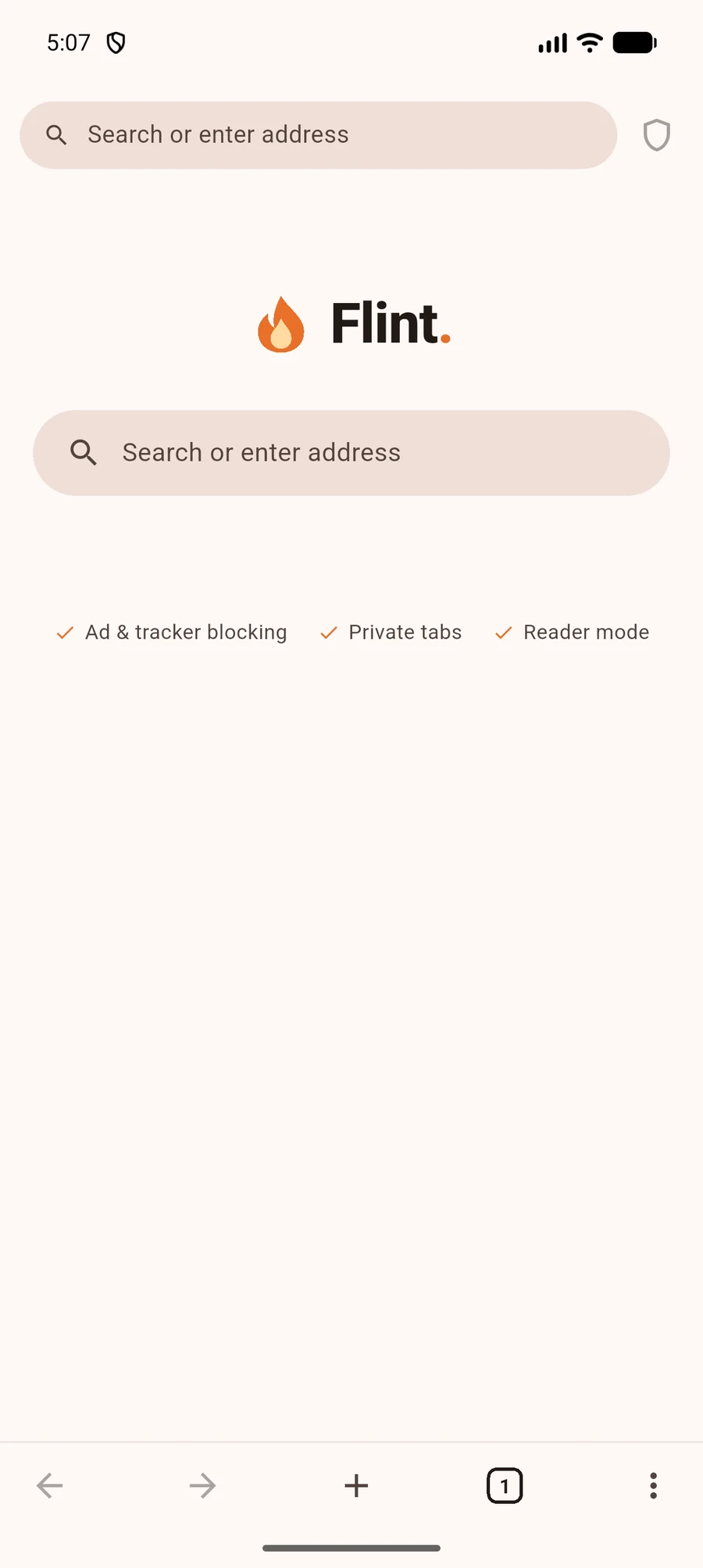
- 1Search or enter address — The address bar. Tap it to type an address or a search.
- 2Shield — Shows what was blocked on this page and turns blocking off or on for the site.
- 3Home search box — Does the same as the address bar. Your most visited sites appear below it.
- 4Back — Back, with forward next to it.
- 5New tab — Opens a new tab and the address box.
- 6Tabs — The number of open tabs. Tap to see them all.
- 7Menu — Bookmark, Reader, Find, Share, private tabs, your library and Settings.
1. Visit a website
Tap Search or enter address at the top.
Type
example.comand press the enter key on your keyboard.Flint opens
https://example.com. A green padlock in the address bar means the connection is secure.Tap the back arrow at the bottom to return to the home page.
2. Search the web
Tap the address bar and type some words, for example
how do tides work.As you type, matching pages from your history and bookmarks appear as suggestions. Tap one to open it.
Press enter to search. The default search engine is DuckDuckGo; you can change it in Settings.
3. Open and close tabs
Tap + at the bottom. A new tab opens, ready for you to type an address.
Tap the square with a number in it. You see all your tabs as cards.
Tap a card to switch to that tab, or tap the x on a card to close it.
4. Bookmark a page
Open a page you want to keep.
Tap the menu (three dots) at the bottom right, then tap Bookmark.
A message says Bookmark added. The button now reads Saved; tap it again to remove the bookmark.
To see your bookmarks, open the menu and tap Bookmarks.
5. See what was blocked
Visit a news site or another site with ads.
Look at the shield at the top right. A number on it shows how many ad and tracker requests Flint blocked on this page.
Tap the shield to see that count and the total blocked since you installed Flint.
What you learned
- The address bar takes both addresses and search words.
- + opens a tab, and the numbered square shows all your tabs.
- The menu holds Bookmark, Reader, Find and Share.
- The shield shows what Flint blocked.